
1. Open Event Campaigns
In your company account, open Event Campaigns from the side menu. Active campaigns are expanded automatically and show a green pulsing dot so you always see what is running right now.
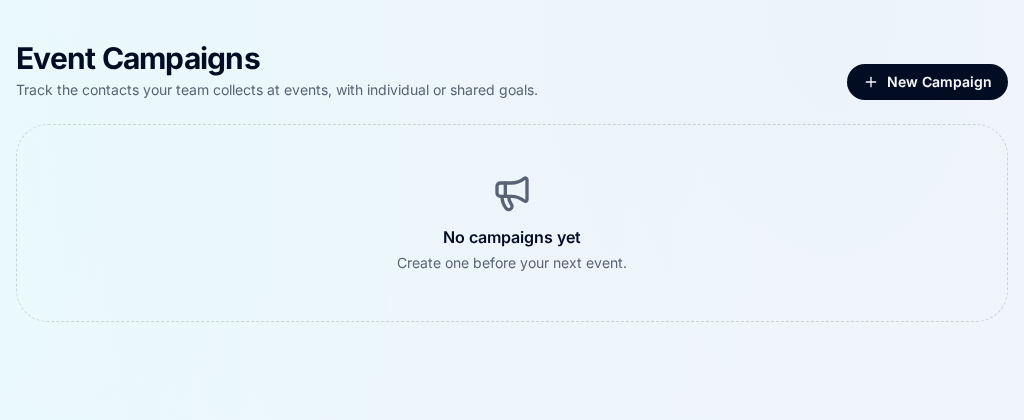
Turn a trade show or conference into a measurable team target — set goals, tag every contact and watch progress live.
In your company account, open Event Campaigns from the side menu. Active campaigns are expanded automatically and show a green pulsing dot so you always see what is running right now.
Click New Campaign, give it the event name, choose which team members are attending, then pick an individual goal per member or one shared group goal. Add a contact label so every contact collected during the event is tagged automatically.
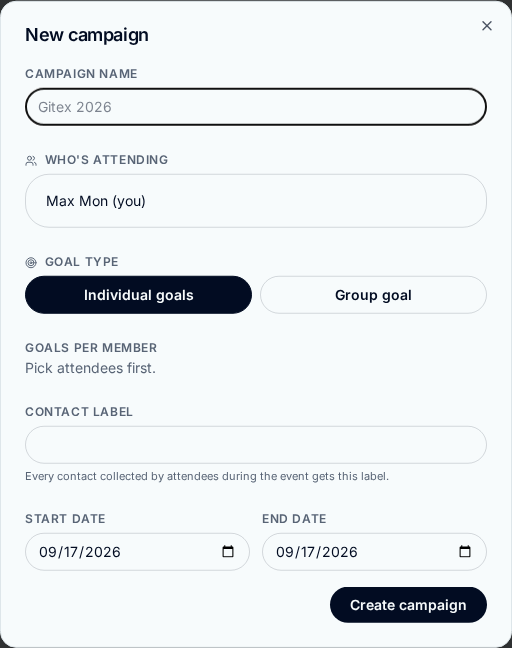
Choose the start and end date of the event (shown as DD/MM/YYYY). A campaign can only be switched on while today falls inside that range — if it doesn't, you'll be asked to pick new dates before it turns on.
Use the switch on the campaign card to turn it on or off at any time. While it's live, every contact your attendees collect counts towards the goal and receives the campaign label.
Progress bars show each member's count against their goal, plus the team total. The same live panel appears in Insights with a View more link straight back to the campaign.
You can rename a campaign, change attendees, goals, label or dates at any moment, and delete a campaign you no longer need. Contacts already collected keep their label.